The path to passkeys — and typing your password far less often.
We’re moving Mac management at Emily Carr to Microsoft Intune. The reason is what it unlocks next: once your Mac is on Intune, we can turn on Platform Single Sign-On — a passkey on your Mac that signs you in to our systems with a tap or your fingerprint, so you type your password far less than you do today. This migration is the first step on that path, and it’s coming in the near future.
The move itself changes nothing you can see — your apps, files, and settings stay exactly as they are. Nothing is erased, no restart is needed, and you don’t lose any work, and it only takes about 90 seconds.
What you'll see and what to do
You'll get a notification that your Mac's management needs to move to Intune, with an enrollment deadline — you can also find it any time in System Settings → General → Device Management. Reminders appear daily, then hourly in the last 24 hours, but you can complete it the moment you get the first one. The whole thing takes about 90 seconds:
- Click the notification, or open the Device Management prompt in System Settings.
- Enter your Mac password.
- System Settings opens to Device Management — click Enroll and let the brief progress window finish.
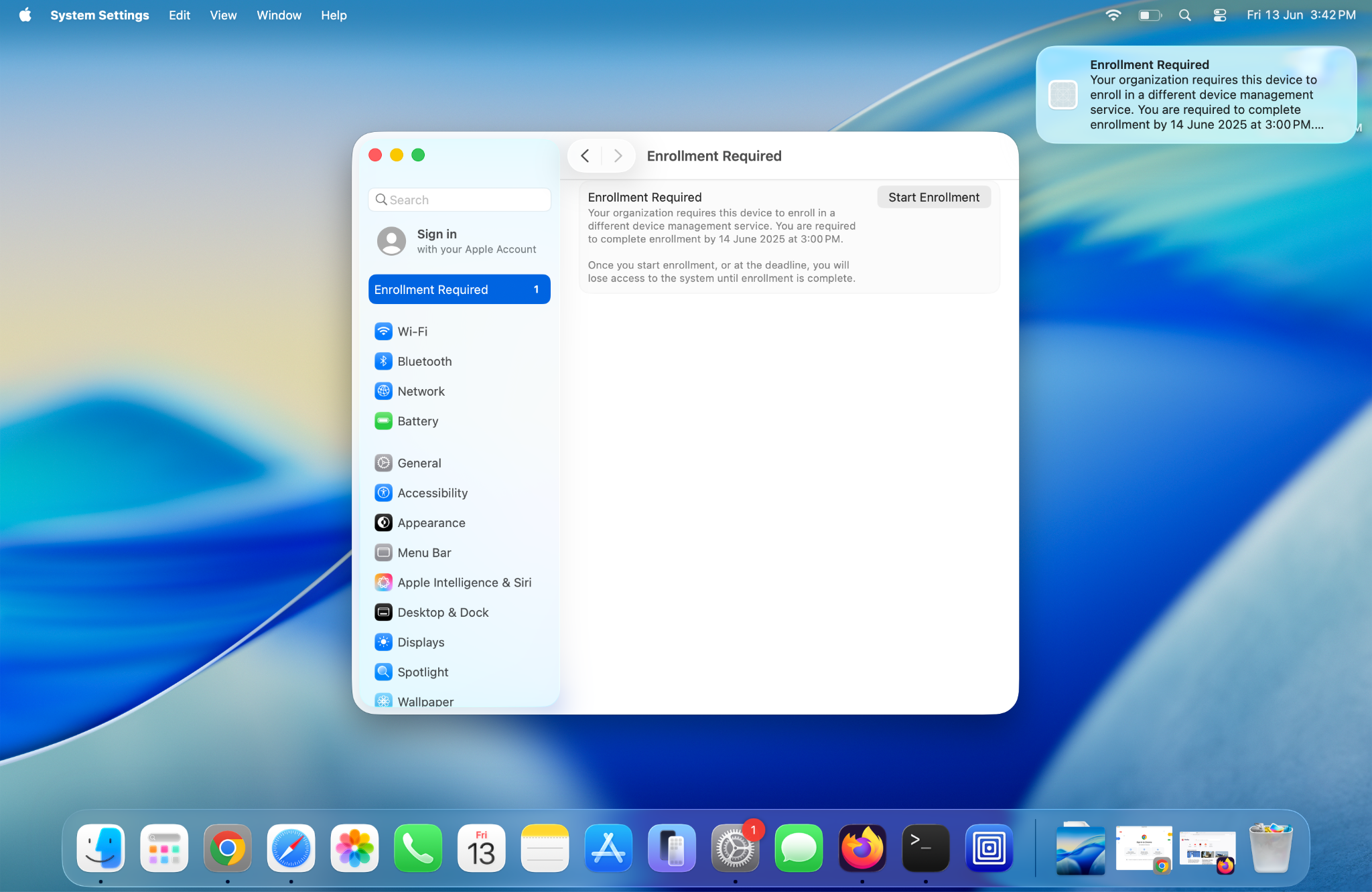
What you’ll see: the notification, and the matching item in System Settings → General → Device Management.
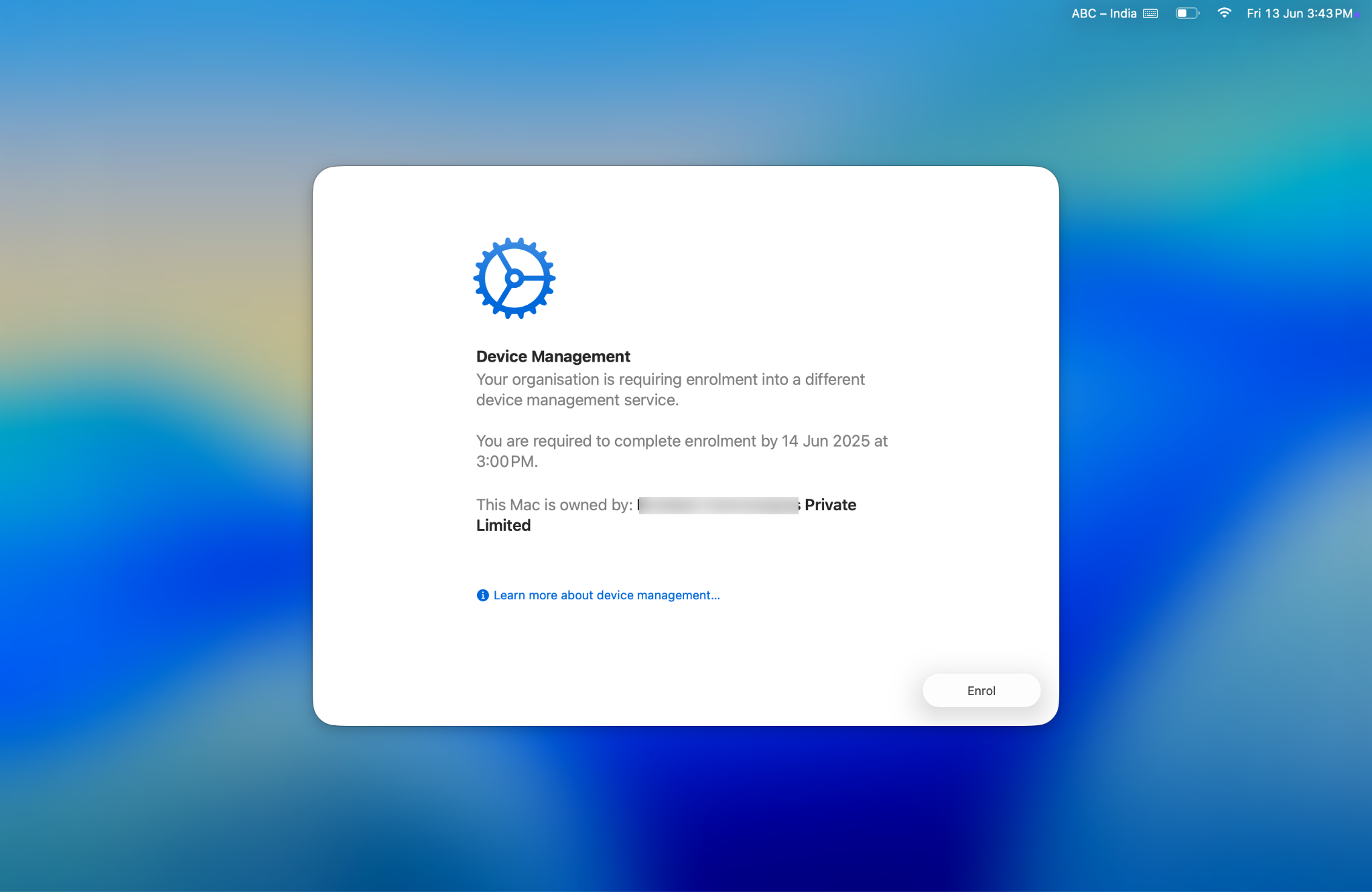
The full-screen Device Management page — click Enroll to start.
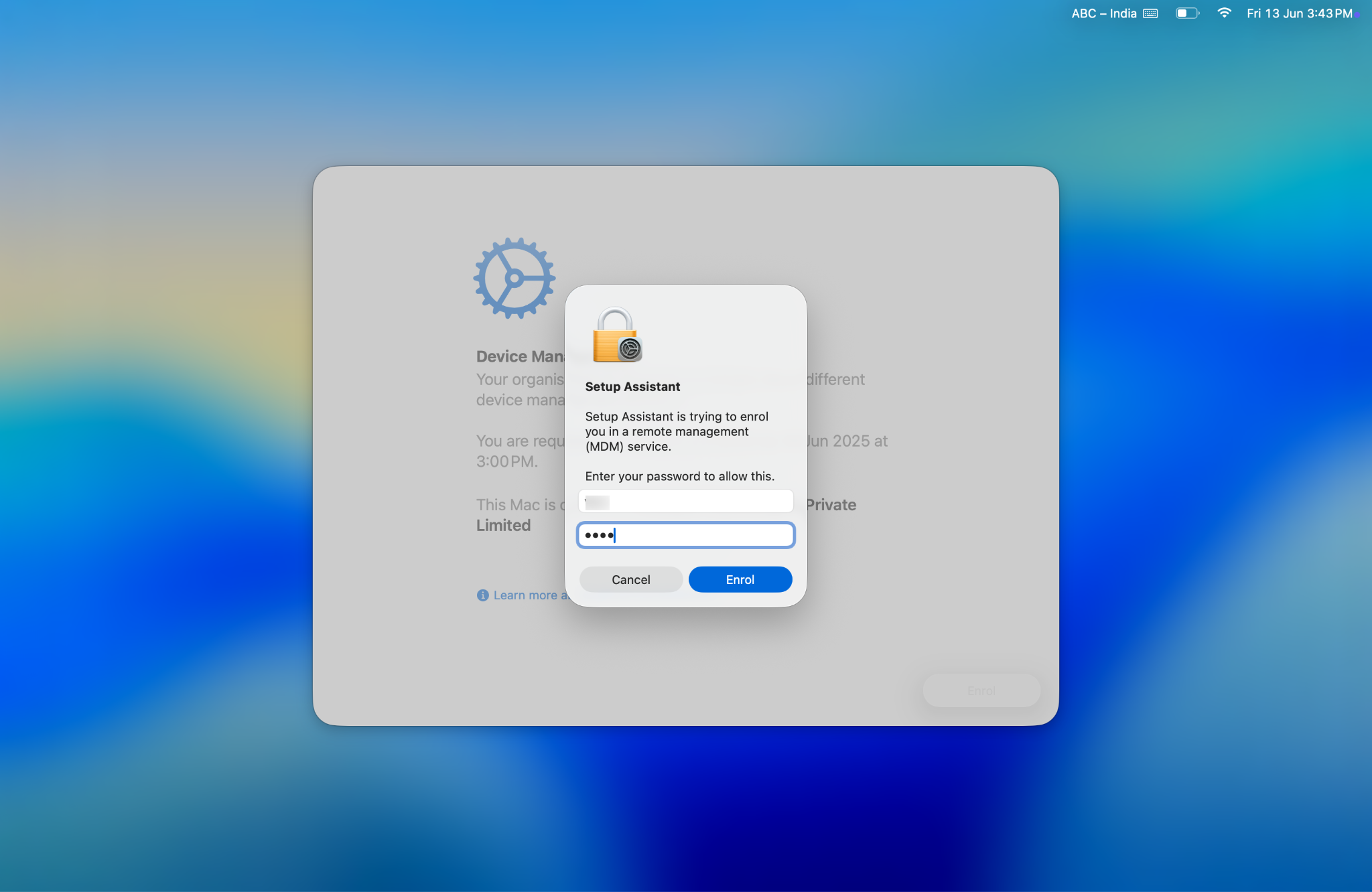
The enrollment prompt — enter your Mac password and click Enroll.
If the deadline passes before you've done it, your Mac shows a full-screen prompt you'll need to complete before you can keep using it — it's the same quick step, so it's easiest to do it early, at a time that suits you.
One thing to know about VPN: after migration your VPN settings reset. If you had your username and password saved under System Settings → Network → VPN, we recommend re-entering them so the saved login carries over. It’s a quick one-time step after the move.
Common questions
- Will I lose any files or apps? No — your new management profile installs before the old one is removed, so nothing is erased.
- Do I need to restart? No, the change happens in the background.
- It's asking for my password — is that normal? Yes, that's expected.
- Can I do this from home or on VPN? Yes — you just need an internet connection.
- My VPN is asking for my username and password again — is something wrong? No. The Emily Carr VPN reinstalls automatically after you enroll, but a username and password you’d saved before won’t carry over. Open System Settings → Network, select the Emily Carr VPN, and enter your credentials once more — choose to remember them and you’re set. It’s a one-time step after the move.
- Why are we doing this? Better integration with our Entra single sign-on, device-level passkeys, and stronger security — while keeping the same tooling you already use.
- What happens after I enroll? Your Mac guides you through setting up Platform Single Sign-On (a smoother, passkey-based login) — see the related article Enabling Platform Single Sign On on your Mac linked below.
Still stuck? Reply on your migration ticket or contact the Service Desk.