Overview
Maxon One is a comprehensive 3D software bundle for artists and creators. It offers industry-leading tools for 3D animation, motion graphics, filmmaking, sculpting, rendering and more. The bundle includes all our 2D and 3D software and tools, such as Cinema 4D, Redshift, ZBrush, Red Giant, and Universe.
Priority will be given to Animation and DDM students for home-use licenses.
Disclaimer: If install via the below steps fail, please visit Maxon support for further assistance.
|

|
Step 1: Create a Maxon Account
a. Go to https://www.maxon.net
b. Click Sign In
c. Select Create Account if you do not already have a Maxon account.
d. Register using your assigned @ecuad.ca email address.
e. Verify your email account when prompted.
|
|

|
Step 2: Accept Your Educational License
a. Open the license invitation email sent by Maxon from noreply@maxon.net.
b. Click the Accept button in your invitation email.
c. Sign in with your Maxon account.
|
|
|
Step 3a: Download the Maxon app
a. Sign in to your Maxon account with the same email address that received the educational license invite.
b. Navigate to Downloads.
c. Download the Maxon App for your operating system: Windows or MacOS
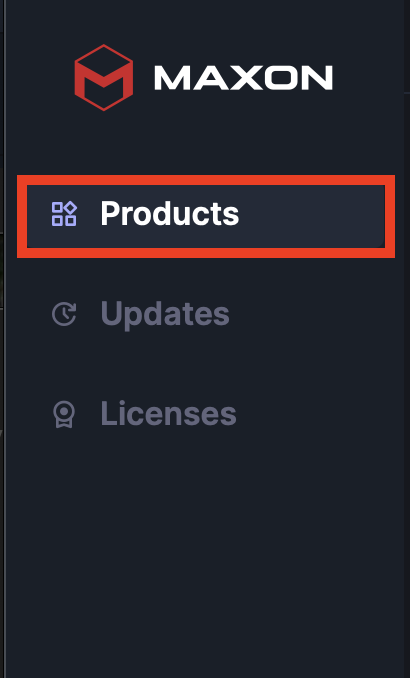
Step 3b: After signing in you'll be on the Products tab of the Maxon App. Select the product you wish to download (i.e. ZBrush) and click Install.
The Maxon App then downloads and runs the installer, which then guides you through the rest of the process.
After installation has completed, you can then locate the installed program(s) on your system:
- Cinema 4D and ZBrush install alongside other applications (Start menu for Windows, App folder for Mac)
- Redshift and Red Giant plugins reside in whichever compatible host applications were on the system during the installation process.
|
 |
Step 4: Install the Maxon App
a. Run the downloaded installer.
b. Follow the on-screen instructions.
c. Complete the installation and launch the Maxon app.
|
| |
Step 5: Sign In and Install Products
a. Sign in on the Maxon app.
b. Select the products you need, such as: Cinema 4D, Redshift, Red Giant, ZBrush
|
| |
Step 6: Verify License Activation
a. Launch the installed application.
b. Sign in if prompted.
c. Confirm that the software shows an active educational license.
|
For Further Information on Maxon App & Software Installation, please visit this link.
Troubleshooting Solutions:
If Maxon One is installed but shows as a trial:
- Sign out of the Maxon App.
- Sign back in using the licensed account.
- Verify the license appears under Account > Licenses.
- Restart the application.
- Contact Maxon support by submitting a ticket on https://support.maxon.net
Note: Redshift and some Maxon applications require supported GPU. Older laptops may install successfully but perform poorly.