Managed Software Center is the app on ECU Windows computers where you install, update and remove software yourself. You do not need an administrator password and you do not need to open a ticket.
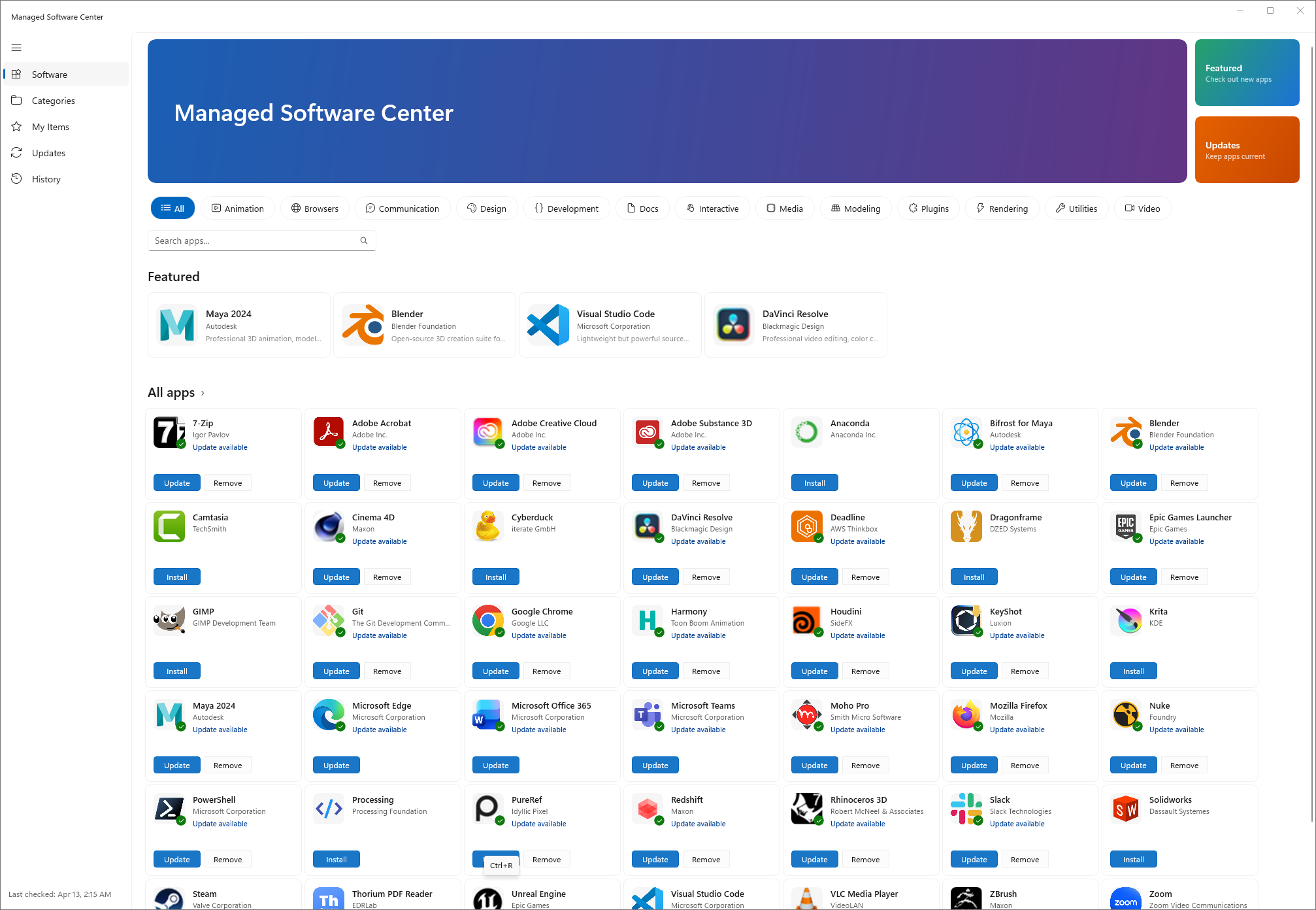
What it does
- Lists the software available for your computer. The list depends on whether the computer is assigned to you or shared, and on your department.
- Installs, updates and removes that software when you ask it to.
- Shows what was installed or updated automatically. Required software and security updates install in the background on their own, so you may never need to open the app for those.
Everything in the list is licensed and packaged by IT Services. If the software you need is not listed, see Something is missing or not working below.
Open Managed Software Center
- Select Start.
- Type Managed Software Center.
- Select the app to open it.
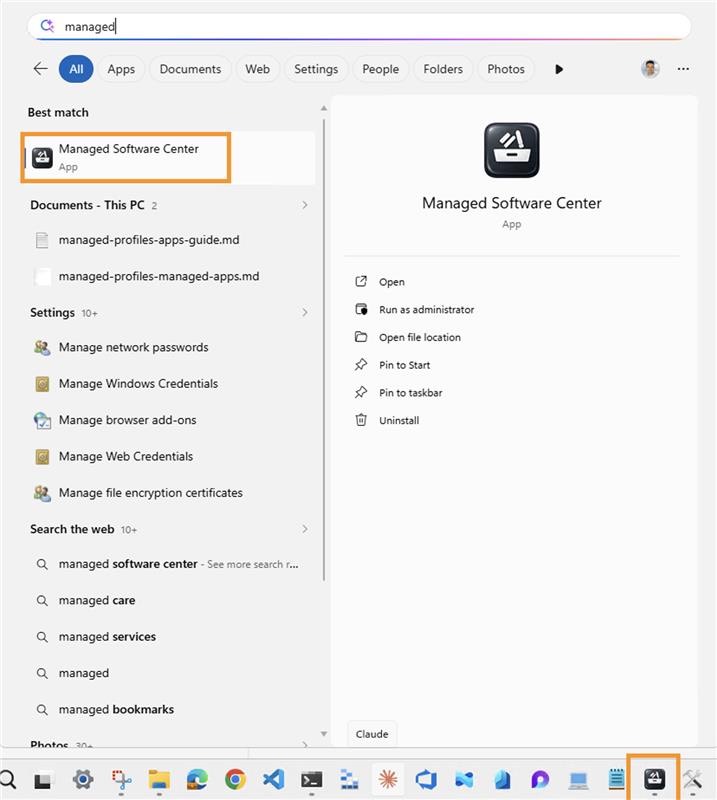
It is also listed in the Start menu under the Cimian folder.
Install an app
- Select Software in the left menu.
- Find the app. You can type its name in Search apps..., select a category such as Design or Modeling along the top, or scroll through All apps.
- Select Install on the app.
- Wait for it to finish. The app shows Downloading..., then Installing..., then a green check mark on its icon when it is installed.
You can keep working while it installs. Large apps such as Solidworks or the Adobe suites can take a long time, so leave the computer on and connected to the network.
To read more about an app before installing it, select its name. The details page shows a description, the version and the download size.
Update an app
An app with a newer version available shows Update available under its name.
- To update one app, select Update on that app.
- To update everything at once, select Updates in the left menu, then select Install Now.
If the Updates page says Your software is up to date, there is nothing to do. Select Check Again if you were told a new version is ready and you do not see it yet. You can also press Ctrl+R or F5 on any page to refresh.
Some updates need a restart. The Updates page tells you before you start, and offers Restart Now when it is done. Save your work first.
Remove an app
- Find the app on the Software page or under My Items.
- Select Remove.
Some apps have no Remove button. Those are required on your computer and cannot be removed.
The left menu
| Page |
What it is for |
| Software |
Every app available for this computer, with search and category filters. |
| Categories |
The same apps, grouped by type. |
| My Items |
The apps you chose to install or remove, and what is still pending. |
| Updates |
Updates waiting to install, and the button to install them all. |
| History |
Everything installed, updated or removed on this computer, including the automatic background runs. |
The date and time of the last check is shown at the bottom left of the window.
Something is missing or not working
- The app I need is not listed. Submit a request to IT Services with the name of the software and what you need it for.
- An install or update failed. Restart the computer, open Managed Software Center and try again. If it fails a second time, submit a ticket with the name of the app and the name of your computer.
- An app shows Unavailable. It cannot be installed on this computer. Submit a ticket if you think it should be.
- IT Services asks you for the log. Press Ctrl+L to open the log, then use the copy button to copy it into your ticket.
Submit requests and tickets at servicedesk.emilycarru.ca.